Installation For Windows
For certain aspects of this process, you will need to be an administrator to download certain files. It is recommended that you follow the process on your own device, or a device where you have administrative privileges.
You will also need to have some python coding program. Visual Studio Code is heavily recommended for this, but not required.
Cloning ACCERT
In your file explorer, create a folder where you want to install ACCERT. (e.g., CODE)
Open a terminal window in Git.
If git is not yet installed, install it on the website.
[Git - Downloading Package] (https://git-scm.com/download/win)
To confirm Git installed properly, open the terminal and type in git.
If various commands appear, Git is successfully installed.
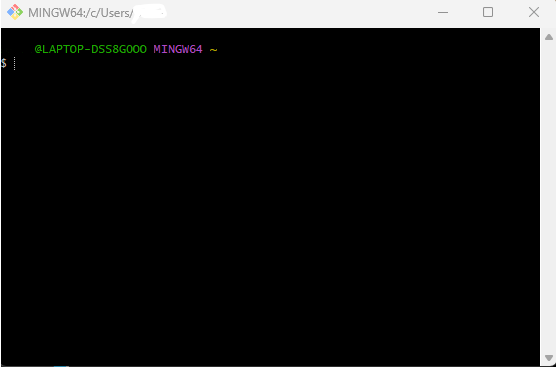
Follow the next steps one at a time to create an ACCERT folder in your previously created folder.
$ mkdir CODE
$ cd CODE
$ git clone https://github.com/accert-dev/ACCERT.git
$ cd ACCERT
If you created the folder to install ACCERT, you do not have to use the mkdir command.
Within this ACCERT folder you should have very similar stuff as the ACCERT Git folder.
Install the MySQL Community Server
[MySQL Community Server] (https://dev.mysql.com/downloads/mysql/)
Click the recommended download.
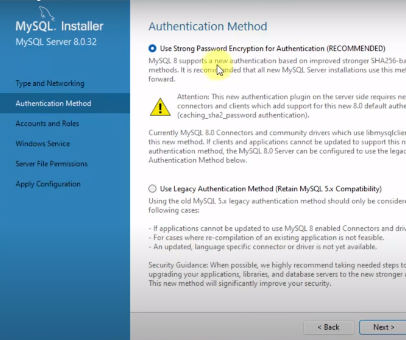
You can go through with all the recommended settings. (Developer Default)
NOTE!
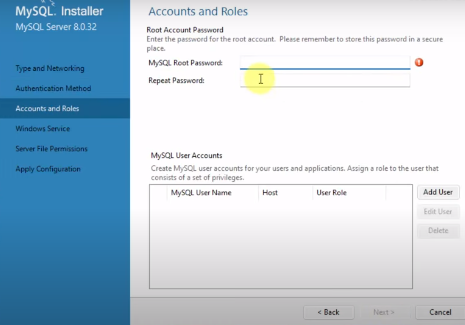
You will have to create a strong password encryption, and enter said password in during the download process. Write this password down somewhere or keep it secure with a password manager!!! It is very time consuming and difficult to reset this password! This password does not have to be complex, nor personal info.
Install NEAMS Workbench
[NEAMS Workbench] (https://code.ornl.gov/neams-workbench/downloads)
Click the .exe extension. This is for windows.
This file will be considered as unsafe. This file is safe! Click more options to keep the file!
Run NEAMS Workbench before continuing to the next step.
Set Up ACCERT
This part has some troubleshooting to do
Change into the src folder
$ cd src
Editing the workbench.sh file
To edit this file, open the entire ACCERT folder in your python coding application.
In the src folder, open the workbench.sh python file.
In here, there will be a line of code that allows the variable “workbench_path” to be set equal to something.
Copy the path of the workbench folder you just installed, and paste it here.
Make sure the name of the folder does not have a space! This can mess up the code!
Save the file.
This part is currently having issues.
$ workbench_path="<Paste folder path here>"
$ ./setup_accert.sh
File Navigation
Using the file explorer, Create a bin file in ACCERT
Navigate to the bin folder in the workbench folder.
Copy sonvalidxml and paste it in the ACCERT bin.
Copy docprint and paste it in the ACCERT bin.
Running ACCERT Through Python
Creating the install.conf file.
In the file explorer, go to the src folder in the ACCERT folder.
Create a new text file and insert the following into it:
[INSTALL]

PASSWD = yourpassword

# NOTE: ALL OTHER information should be set up later
# INSTALL_PATH = /usr/local
# DATADIR =/mysql/data
# INSTALL_PACKAGE =
# EXP_DIR =
Where it says yourpassword, input the MySQL password that was previously saved.
Save this text file.
This text file should be named exactly as install.conf
To do this, on the edit bar, click view, show, and click file name extensions.
Remove the .txt from the install.conf file and save it, even if it alters the file.
Testing and installing Conda
This part requires some troubleshooting
Errors/Troubleshooting
Conda
The conda application opens and does… nothing?
./conda install -r requirements when in the workbench-5.3.1/rte folder returns an error that says “bash: ./conda: Is a directory”
Workbench
Cannot connect ACCERT to workbench
When trying to run the ./setup_accert_win.bat in the terminal, it returned an error stating, “ERROR: “!line:=!” does not contain any subfolders”