Installation For Mac
For certain aspects of this process, you will need to be an administrator to download certain files. It is recommended that you follow the process on your own device, or a device where you have administrative privileges.
You will also need to have some python coding program. Visual Studio Code is heavily recommended for this, but not required.
Cloning ACCERT
In your file explorer, create a folder where you want to install ACCERT. (e.g., CODE)
Open a terminal window in Git.
If git is not yet installed, install it on the website.
[Git - Downloading Package] (https://git-scm.com/download/win)
To confirm Git installed properly, open the terminal and type in git.
If various commands appear, Git is successfully installed.
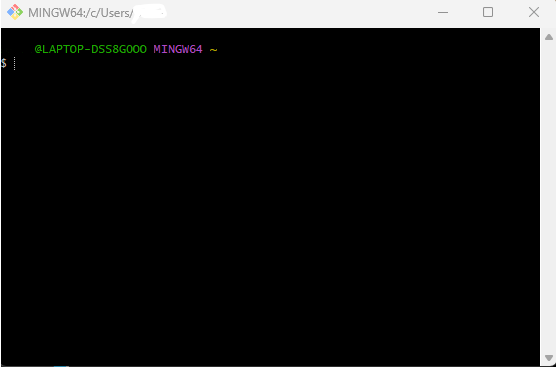
Follow the next steps one at a time to create an ACCERT folder in your previously created folder.
$ mkdir CODE
$ cd CODE
$ git clone https://github.com/accert-dev/ACCERT.git
$ cd ACCERT
If you created the folder to install ACCERT, you do not have to use the mkdir command.
Within this ACCERT folder you should have very similar stuff as the ACCERT Git folder.
Install the MySQL Community Server
[MySQL Community Server] (https://dev.mysql.com/downloads/mysql/)
Click the recommended download.
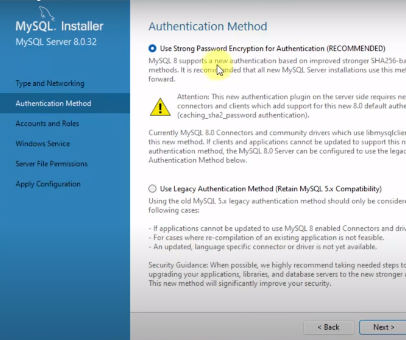
You can go through with all the recommended settings. (Developer Default)
NOTE!
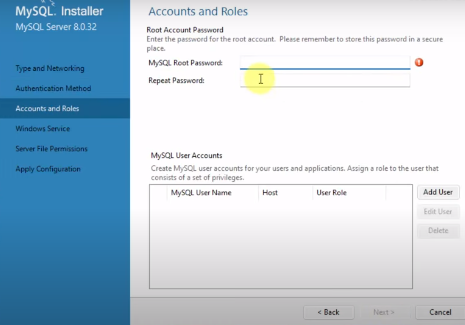
You will have to create a strong password encryption, and enter said password in during the download process. Write this password down somewhere or keep it secure with a password manager!!! It is very time consuming and difficult to reset this password! This password does not have to be complex, nor personal info.
Install NEAMS Workbench
[NEAMS Workbench] (https://code.ornl.gov/neams-workbench/downloads)
Click the .dmg extension. This is for MacOS.
This file could be considered as unsafe. This file is safe! Click more options to keep the file!
Run NEAMS Workbench before continuing to the next step.
Set up ACCERT
Change into the src folder
$ cd src
Edit the workbench.sh file, provide workbench_path to workbench-<version-number>.app/Contents folder.
workbench_path="workbench-<version-number>.app/Contents"
Follow the text for the appropriate system, in this case MacOS,
workbench_path="Workbench-5.3.1"
Run ./setup_accert.sh
$ ./setup_accert.sh
Edit file install.conf and change “yourpassword” to your MySQL root password.
[INSTALL]

PASSWD = yourpassword

# NOTE: ALL OTHER information should be set up later
# INSTALL_PATH = /usr/local
# DATADIR =/mysql/data
# INSTALL_PACKAGE =
# EXP_DIR =
Test installation
Test ACCERT
$ cd ../test
$ pytest
Configuration with Workbench
Open workbench, and open Workbench/Configurations hit add on the top
Select Accert from the drop-down menu, hit OK
In executable: give full path to the directory containing accert/src/Main.py
In configuration, hit load gramma
ACCERT Execution
ACCERT can be executed both through the Workbench interface by pressing run or through the command lines:
$ python ACCERT/src/Main.py -i myinput.son
Where myinput.son refers to one of the two reference models, PWR12-BE.son or ABR-1000.son